When you sign up for PropertyList.es, you’ll create your company profile. From there, you can invite staff members to create accounts within the company. This setup will provide valuable information to help you manage properties, showings, the sales pipeline, and more. This guide will walk you through the steps for setting up company and employee profiles.
How accounts work?
Staff Accounts:
✅ View, share and contact all properties on the MLS.
✅ Create listings, contacts, pipelines, events.
✅ Share with clients using a unique URL that identifies them as the agent.
❌ Cannot use credits to buy paid features.
❌ Cannot view other users contacts, pipeline, events etc.
Admin Accounts: (full access)
✅ Assign staff and oversee all actions, including assigning leads, creating properties, contacts, events, and pipelines etc.
✅ Admins can change permissions for each staff member, allowing them to feature a property or have full admin access.
Read only Accounts:
✅ Can see the platform.
❌ Cannot edit anything.
Creating staff accounts
Staff accounts are free to add to your company profile and have limited access to certain features.
Where to find it: in the MLS sidebar, under AGENCY, open Staff (direct link: agents.propertylist.es/staff). The page lists everyone in your agency with their role and whether they are active, and has a search box for larger teams.
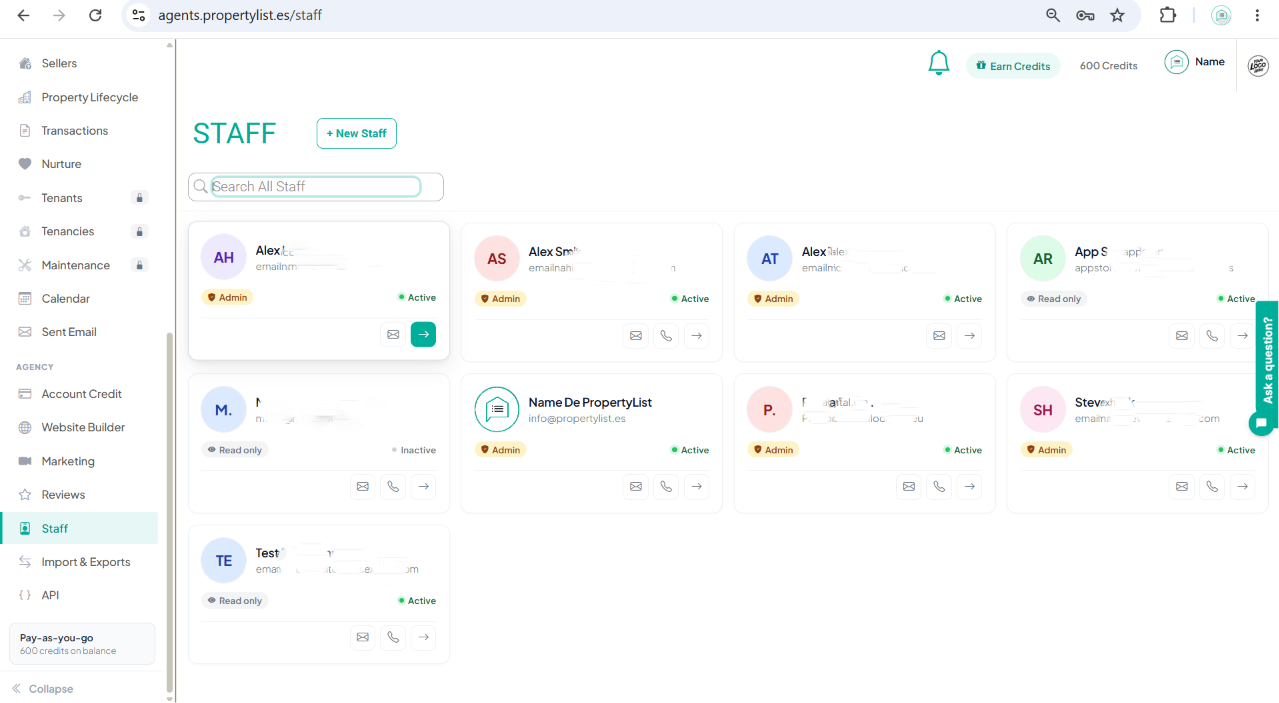
Click + New Staff, then complete:
- Enter First Name & Surname
- Add Email & Phone
- Select what language to show the platform for the individual user
- Add your staff photo (optional)
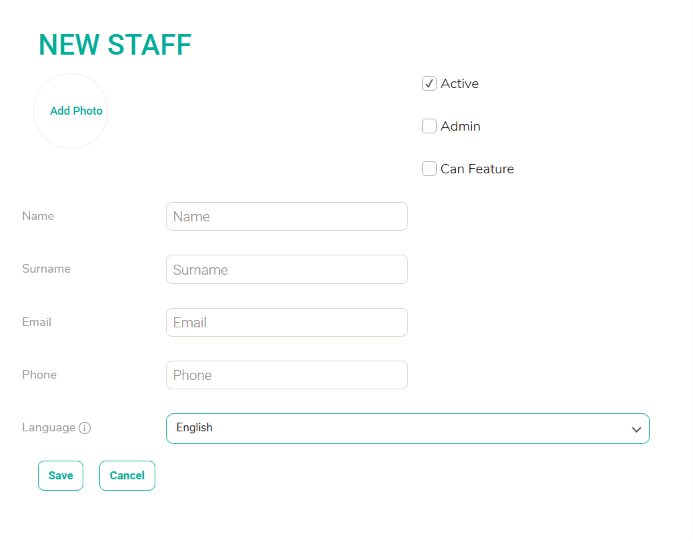
Here you can also set the user permissions and access for each agent.
“Active” = If checked, the user CAN log into their account.
- If unchecked, the user will NOT be able to log in to their account.
“Admin” = If checked, the user WILL have access to FULL admin settings.
- If unchecked, the user will only be able to edit their own listings, contacts, calendar events, etc.
“Can Feature” = When enabled, user can draw from the company account credits to feature listings and additional features.
Read only: someone who cannot edit anything shows a Read only badge on their card in the Staff list. It is a status you see in the list rather than a box on this form.
Revoking Access for an Individual Agent
To revoke or remove access for an individual agent, simply uncheck the “Active” box. This action will deny the agent access to the account without deleting it. The access can be restored later by rechecking the box.