Connect your email (Gmail & Outlook)
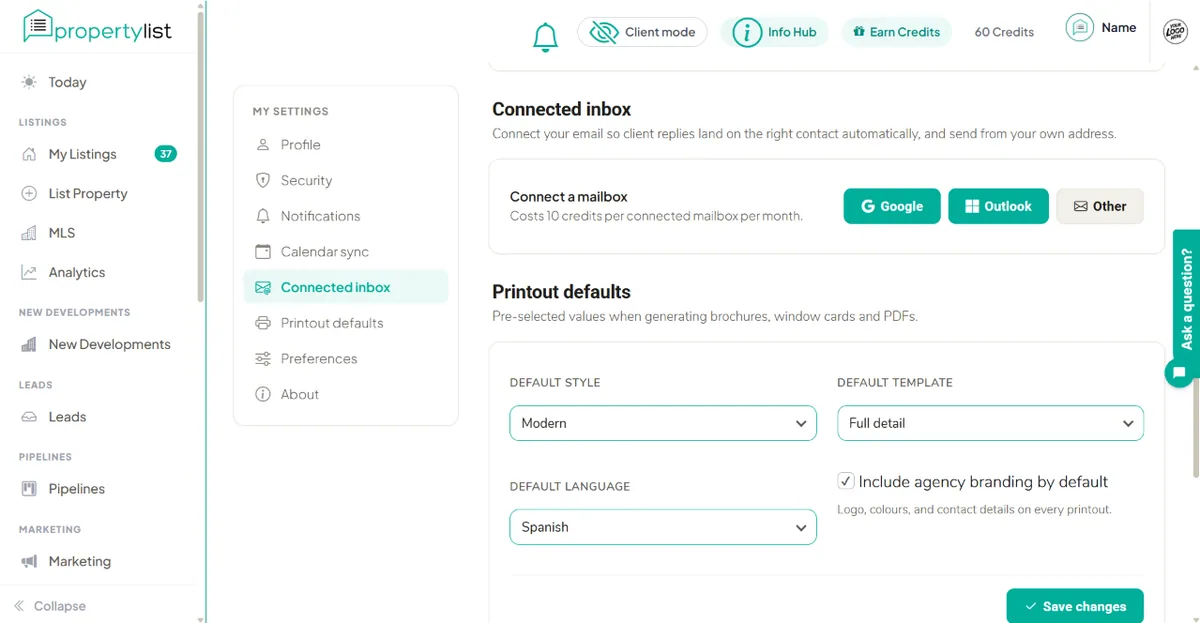
Inbox integration links your own work email to the PropertyList CRM. You connect once, securely, and your email and your CRM stop being two separate worlds. In the CRM the feature is called Connected inbox, under Settings.
What it does
- Connect your real address - Gmail / Google Workspace or Outlook / Microsoft 365, via a secure OAuth login. With those two buttons you sign in on Google’s or Microsoft’s own page, so no password is shared with PropertyList.
- Two-way sync - the conversation appears on the contact in the CRM, and emails you write in the CRM go out through your own account.
- Threads against the right lead - conversations attach automatically to the matching lead or contact, so the full history is on their timeline.
- Send as you - messages go from your own address with your signature. Clients see you, not a platform.
What it costs
When it launches, a connected mailbox will cost 10 Credits per mailbox, per month, taken from the same credit balance you use for everything else. Connect two mailboxes and it is 10 Credits each. Disconnecting stops the charge, and there is no minimum term.
Get ready: Google Workspace
If your agency uses Google Workspace (your email is your own domain, managed in Google Admin), an administrator may need to allow the connection:
- Go to admin.google.com and sign in as an admin.
- Open Security → Access and data control → API controls → App access control.
- If third-party app access is restricted, allow access for PropertyList when it appears in the connected apps list (mark it as trusted).
Using a personal @gmail.com address? There is nothing to prepare - you will simply approve the Google permissions screen when you connect.
Get ready: Microsoft 365 / Outlook
If your agency uses Microsoft 365 (Outlook with your own domain), an administrator may need to allow user consent:
- Go to entra.microsoft.com and sign in as an admin.
- Open Identity → Applications → Enterprise applications → Consent and permissions.
- Allow user consent for verified apps - or, if consent requests are admin-approved, approve PropertyList when the request appears.
Using a personal @outlook.com / @hotmail.com address? Nothing to prepare - just approve the Microsoft permissions screen when you connect.
How connecting will work
- In your CRM settings, choose Connect email and pick Google or Microsoft.
- Sign in on Google's or Microsoft's own page and approve the requested permissions.
- That's it - your inbox starts syncing and new conversations thread against your leads.
Security, in plain terms
- The connection uses OAuth: you sign in on Google's or Microsoft's page, never ours. PropertyList never sees or stores your password.
- You can revoke access at any time - from the CRM, or directly at myaccount.google.com/permissions (Google) or account.live.com/consent/Manage (Microsoft).
- Disconnecting stops the sync; your mailbox itself is never modified beyond the emails you send.
Next steps
- Documents
- Sales pipeline - move a contact through the stages.
- Managing your leads - where new enquiries arrive.