Calendar
In a fast-paced real estate market, missing a meeting means missing a deal. The PropertyList infrastructure features a fully integrated Calendar built directly into your Smart CRM. This centralised scheduling tool schedules appointments, automates reminders, and keeps the agency synced.
Key Strategic Features
The integrated calendar provides a suite of tools designed to enhance productivity and eliminate double-booking:
✅ In-App Scheduling: Schedule client meetings and property viewings directly within the platform. It keeps your deal flow organised.
✅ Team Collaboration: Easily add team members to specific events to ensure everyone is informed and prepared.
✅ Centralised Schedule: View all your critical events in one place - from client viewings and notary appointments to internal team catch-ups or personal commitments.
✅ Admin Oversight: Agency managers require transparency. Admins can assign staff, oversee all calendar events across the agency, and ensure visibility and team coordination. Keep track of team schedules to ensure nothing slips through the cracks.
✅ Automated Reminders: Deploy optional automated reminders that will instantly notify you and your team via email and directly within the platform.
✅ Calendar Sync (Coming Soon): We are currently developing integrations that will allow you to sync your PropertyList schedule with most external calendar apps.
Pro Tip: Link Assets to Events
A Smart CRM contextualises your data. When scheduling an event, you can attach specific client details or property listings directly to the calendar entry. By linking a contact and a property, you instantly access all relevant information during the meeting - no more scrambling for details while the client is waiting.
Step-by-Step: How to Create an Event
To create an event, follow this workflow:
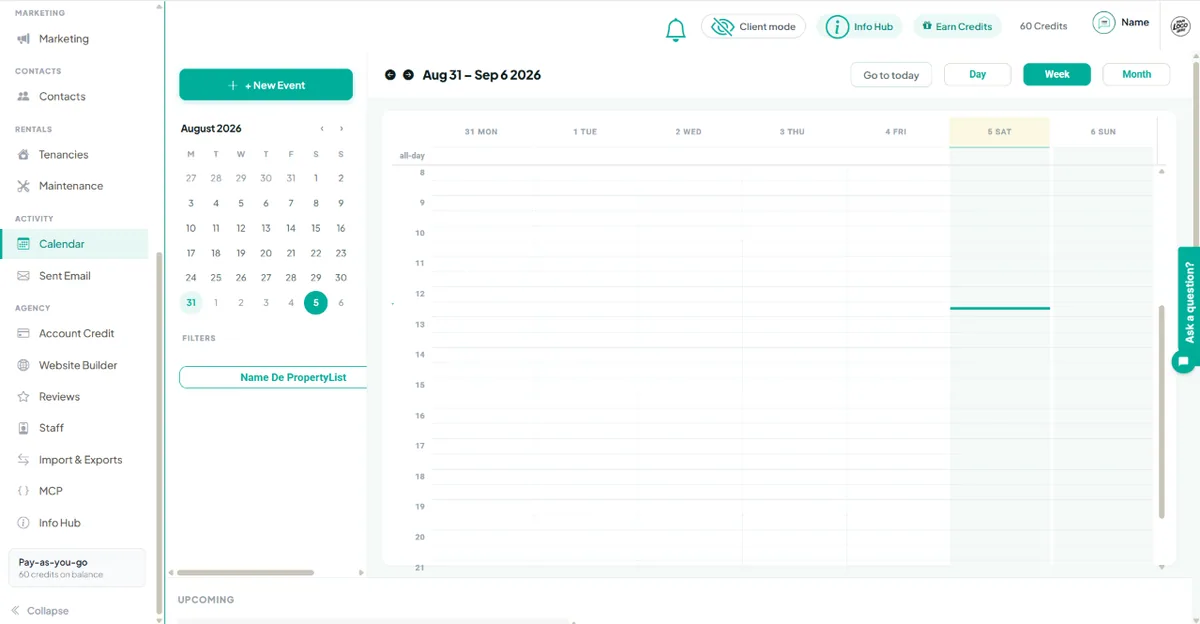
- Step 1: Access the Interface Navigate to the main Calendar tab on your dashboard. Click the “New Event” button, or simply click directly on your desired date and time within the calendar grid.
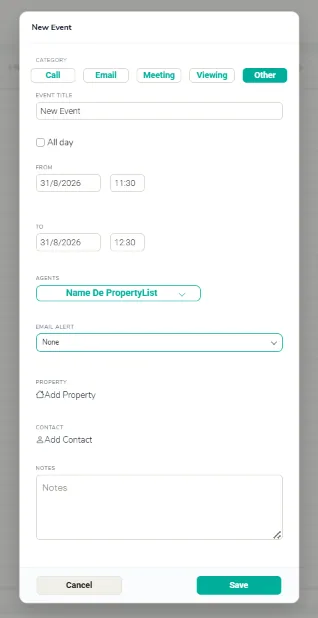
- Step 2: Input Core Details Add the essential event information, including detailed notes, the exact time, and the date.
- Step 3: Assign Accountability Assign a specific staff member to the event if needed. The infrastructure will immediately notify them within their platform dashboard and via email. Admins can easily sort and maintain an overview of all events by assigned user.
- Step 4: Link Your Assets Link the specific property to be viewed and attach the relevant client contact profile for easy, immediate reference.
- Step 5: Configure Notifications Set up your automated notifications to ensure the system reminds you prior to the event, preventing any missed opportunities.
Why Deploy the Smart Calendar?
- Save Time: Spend less time managing scattered schedules and more time closing high-value deals.
- Stay Organised: Keep everything in one centralised, secure, and easy-to-access location.
- Boost Communication: Share scheduling details with your team and your clients.
- Admin Control: Admins can monitor all staff calendars for oversight and resource allocation.
- Fewer Missed Meetings: Automated reminders ensure everyone stays on schedule and arrives prepared.
Next steps
- Managing your schedule and tasks
- Notes & history - keep the record with the contact.
- Performance analytics - see what is converting.