How to connect PropertyList to your AI assistant
Add PropertyList to Claude, ChatGPT or another AI app that supports MCP, sign in once, and ask about your leads, listings and pipeline. What waits for your yes, and the costs.
Your AI assistant can read your PropertyList CRM and search the network for you: your newest enquiries, your listings, your pipeline, matches for a buyer. When you ask it to send listings to a client, book a viewing or change a deal or a listing, it shows you a preview and waits for your yes.
Before you start
- A PropertyList account. If you can sign in to the CRM, you can start.
- An AI app that can connect to an MCP server and sign in, such as Claude or ChatGPT, used on a computer for the setup. On Claude's free plan you can add one custom connector.
- The address you will paste: https://mcp.propertylist.es/mcp
Connect Claude
- In Claude, open Customize, then Connectors, click Add and choose Add custom connector.
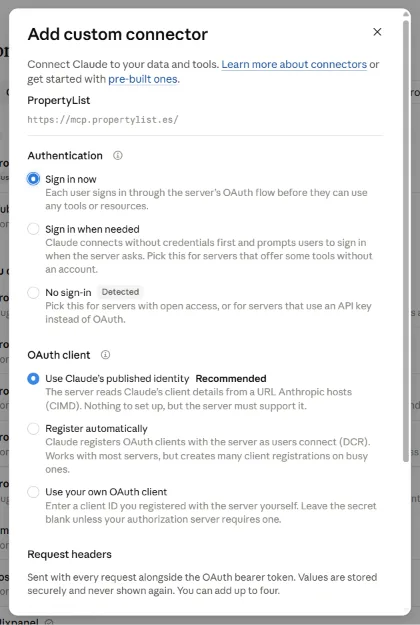
- Name it PropertyList, paste https://mcp.propertylist.es/mcp and click Continue.
- Under Authentication, choose Sign in now. Claude marks No sign-in as detected, because property search works without an account, but without signing in it cannot reach your CRM.
- Under OAuth client, keep Use Claude's published identity, scroll to the bottom of the box and click Add.
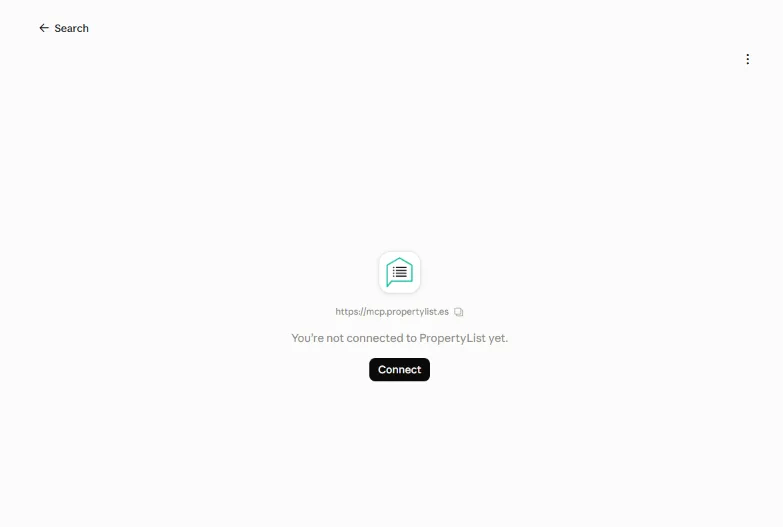
- On the PropertyList connector page, click Connect. Sign in to PropertyList if asked.
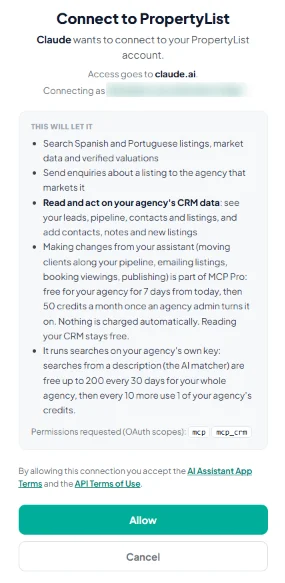
- On the Connect to PropertyList screen, check that the name after Connecting as is right for you, read what the connection allows and click Allow.
Choose what Claude may do without asking
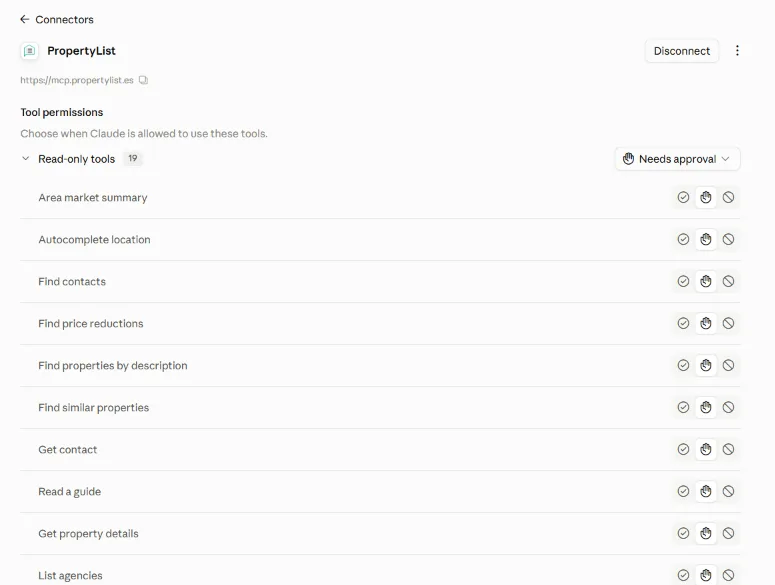
The connector page lists every PropertyList tool, split into read-only tools and tools that write. Each one starts on Needs approval, so Claude asks you before it uses it. If you prefer, let Claude use the read-only tools without asking and keep approval on the ones that write.
Connect ChatGPT
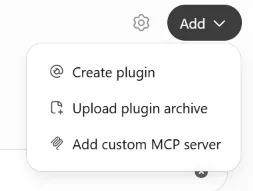
- In ChatGPT, open Plugins, click Add and choose Add custom MCP server.
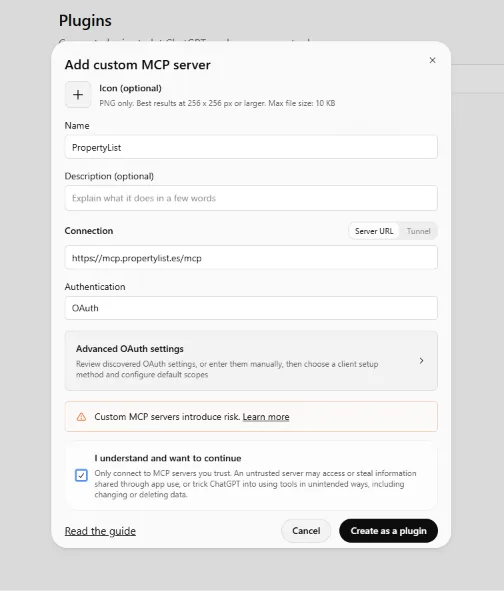
- Name it PropertyList. Under Connection, keep Server URL and paste https://mcp.propertylist.es/mcp. Under Authentication, keep OAuth.
- Tick I understand and want to continue and click Create as a plugin.
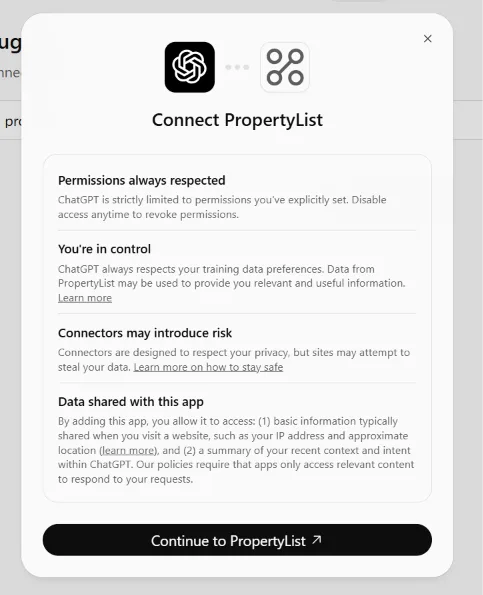
- On the Connect PropertyList screen, click Continue to PropertyList and sign in with your PropertyList account.
- On the Connect to PropertyList screen, check that the name after Connecting as is right for you and click Allow.
Check it works
Start a new chat and ask: "What came in overnight?" Your assistant should answer from your own CRM. Claude may ask you to approve the tool the first time.
Things you can ask
- "What came in overnight?" - your newest enquiries.
- "Which of my listings have too few photos?" - listings that need work.
- "Send Juan the three best matches." - drafted, then your yes.
- "Book Thursday 12:00 with María." - into your diary, after your yes.
- "Where is the Pérez sale on the board?" - your pipeline.
- "Save a note: owner wants a quick sale." - saved on the contact.
What always waits for your yes
Sending listings to a client, booking a viewing, moving a deal on the board, qualifying a lead, assigning a listing and changing a listing's status all show you a preview first: who it goes to, what it says and what it changes. Nothing happens until you reply yes.
Adding a contact, a note or a draft listing saves straight into your CRM, like typing it yourself. Sending an enquiry about a listing to the agency that markets it shows no PropertyList preview: it goes out when you ask.
What it costs
- Connecting and reading your CRM: free with your PropertyList account.
- Searches from a description (the AI matcher): free for the first 200 every 30 days for your whole agency, then 1 credit for every 10 more.
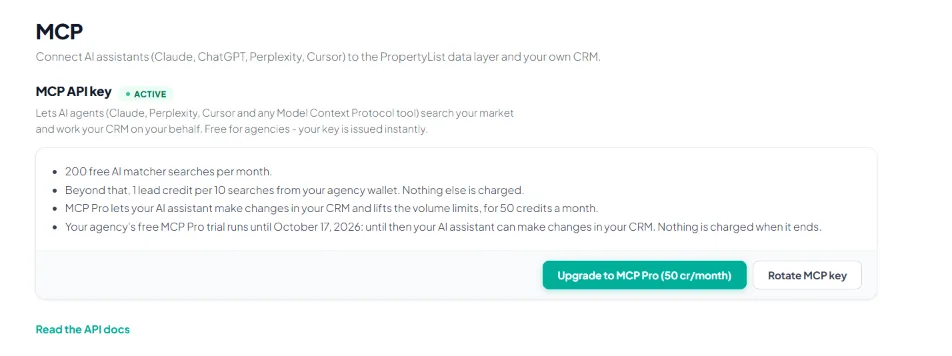
- Making changes from your assistant (moving clients along your pipeline, emailing listings, booking viewings, changing a listing's status): part of MCP Pro, which also lifts the volume limits. It is free for your agency for 7 days from your first connection, then 50 credits a month once an agency admin turns it on in the CRM: open MCP in the left menu, under Agency, and click Upgrade to MCP Pro. Nothing is charged when the free days end.
- Anything that costs credits in the CRM, such as qualifying a lead onto the Buyer board, costs the same here, and the assistant shows you the cost before you say yes.
Your data
- Your assistant only sees your own agency's data. Public listings are searched the way anyone can search PropertyList.
- You see who you are connecting as before you click Allow, and by allowing the connection you accept the AI Assistant App Terms and the API Terms of Use.
- Claude and ChatGPT keep your chats under their own privacy settings, so check those in your assistant.
- To stop, disconnect PropertyList in your assistant's connector or plugin settings. In Claude, the connector page has a Disconnect button.
Other AI apps and tools
MCP (Model Context Protocol) is the standard way AI apps connect to outside services. An AI app or tool that can add an MCP server, sometimes called a custom connector or plugin, and sign in with OAuth can use PropertyList, whichever model it runs. Add the address https://mcp.propertylist.es/mcp, choose to sign in (often labelled OAuth) when it asks, and log in with your PropertyList account. Developer tools such as Cursor and Zed can connect too: the developer page shows how.
If a tool connects with an agency API key instead of signing in, your assistant can read your CRM and save notes, contacts and draft listings, but the actions that wait for your yes need a signed-in connection. Some apps only offer custom connections on certain plans or in certain countries, so check yours. The steps above for Claude and ChatGPT are the only ones we have tested screen by screen.
If something goes wrong
- Claude searches properties but cannot see my leads. - The connector was added without signing in. Remove it and add it again, choosing Sign in now.
- Claude will not let me add the connector. - Claude's free plan allows one custom connector. Remove one you no longer use, or use a paid plan.
- Making changes stopped working after the free days. - The MCP Pro free days have ended. Your trial end date is on the MCP page in the CRM (left menu, under Agency), where an agency admin can upgrade.
- Where do I get help? - Email [email protected].
More about what the connection can do: Your CRM in your AI.