Sync your listings to other websites
Send some or all of your MLS listings to other property portals through a PropertyList export feed, filtering which stock goes out before sharing the feed URL.
Send your listings to other portals
You are not locked in. The same export feed that powers your own website can send your stock to other property portals, so PropertyList sits alongside whatever else you already use rather than replacing it.
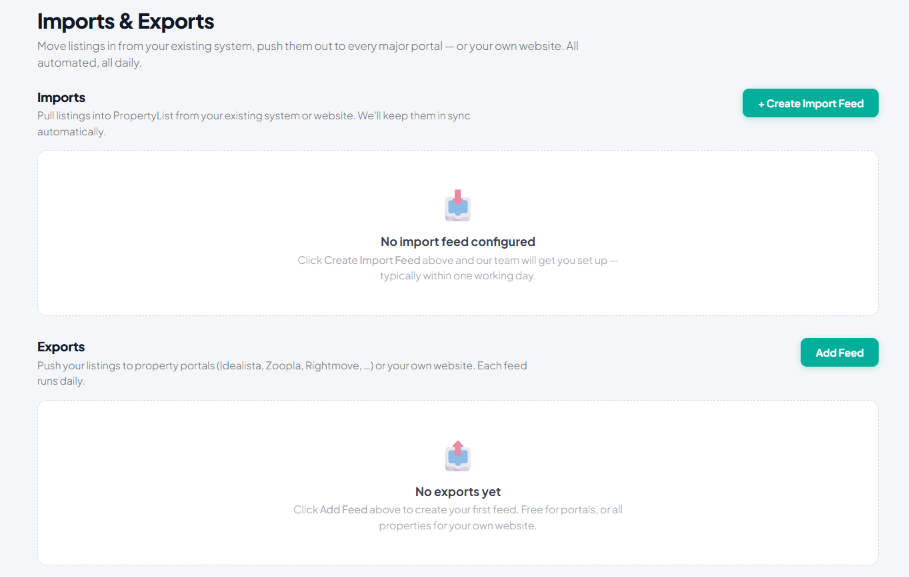
How it works
- Go to Import & Exports and click + NEW EXPORT FEED.
- Pick the format the receiving portal expects from the dropdown. Each portal has its own.
- Filter which properties go out - many agents send only part of their stock to a paid portal.
- Give the feed URL to that portal so they can pull from it.
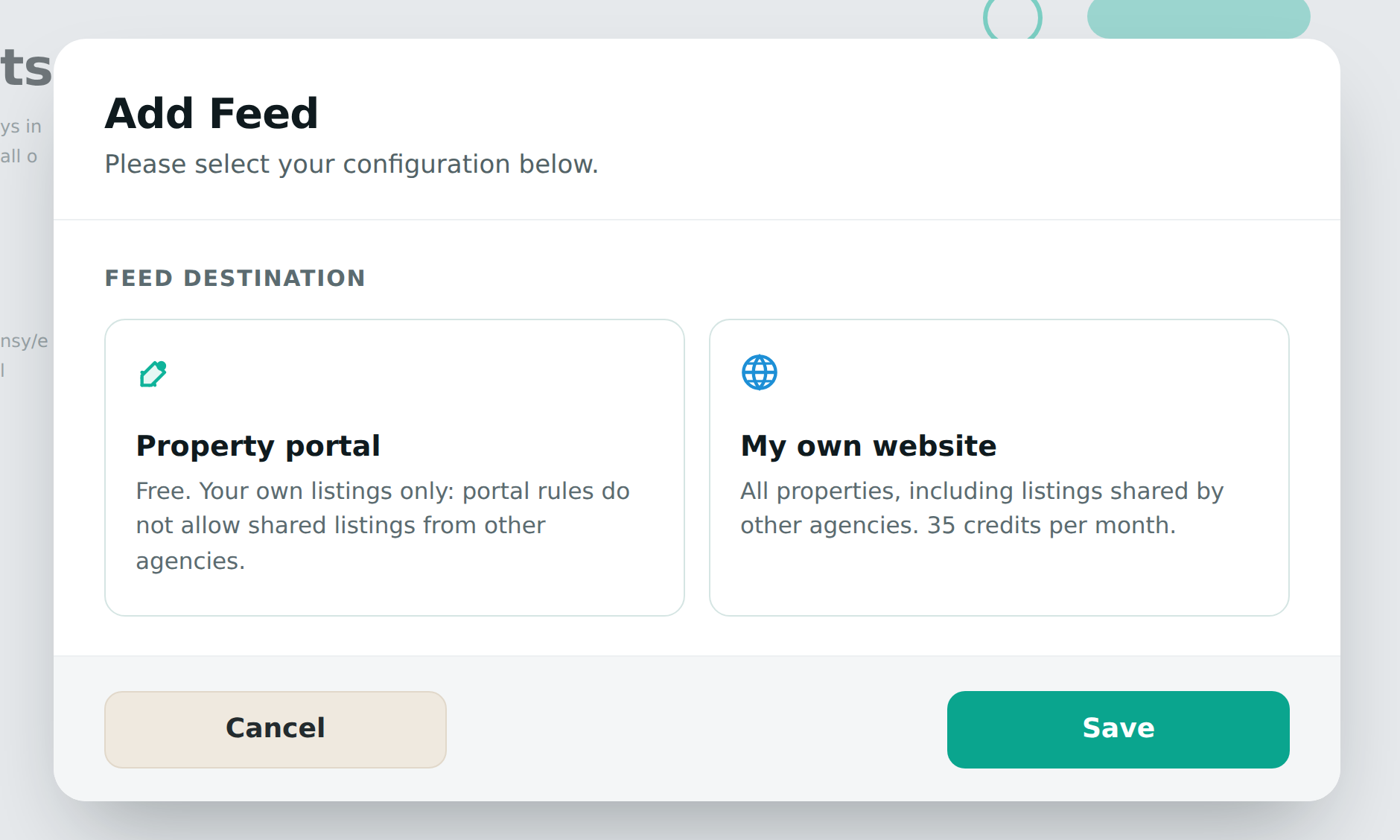
Full detail on every option: Export listings (XML).
Why send only some properties
Where a portal charges per listing, the filters matter. A common approach is to send only the stock that portal performs well for - a price band, a location, or a property type - and keep the rest on PropertyList and your own site, where it costs you nothing.