Export listings: XML feed and Website API
Export listings as an XML feed URL for other platforms and your website, or connect your website through the Website API.
Export listings: XML feed and Website API
PropertyList.es enables you to export your property listings as an XML URL, a tool for expanding your reach across multiple platforms including your own website.
Connecting your own website? Besides an XML feed, your site can pull your listings through the Website API. Go to the Website API section
Requirements
- A PropertyList account with administrative privileges.
Steps
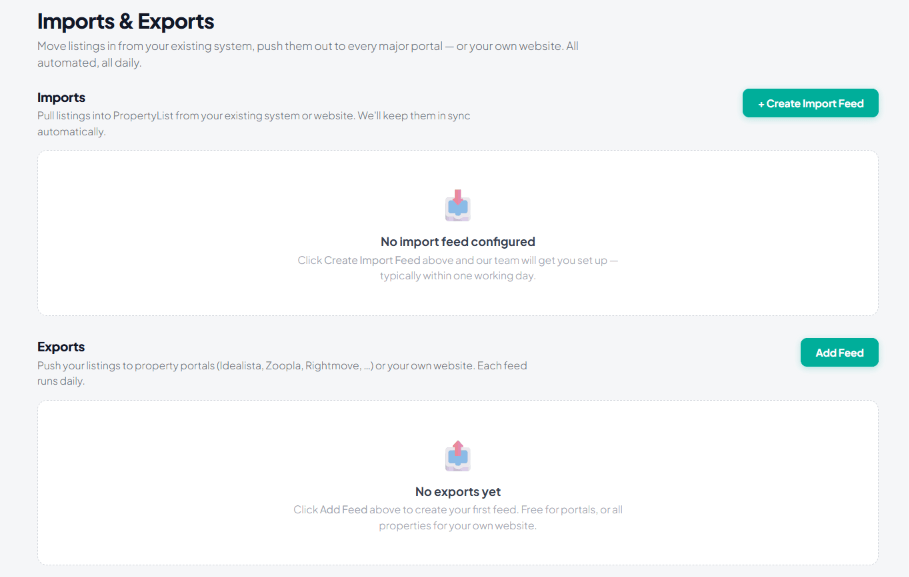
- Access the Export Section: Log in to your PropertyList.es account and navigate to the “Import & Exports” tab on the left-hand side menu.
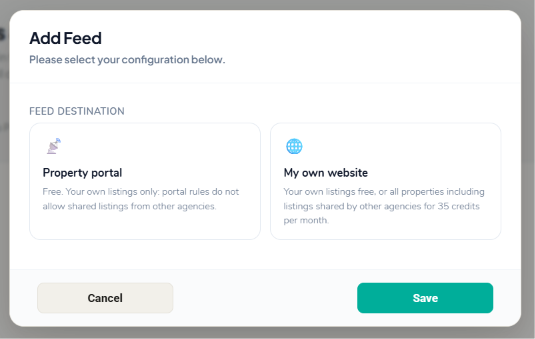
- Choose the feed destination: Click “Add Feed” and pick where the feed is going. Property portal carries your own listings only and is free (portal rules do not allow shared listings from other agencies). My own website is free for your own listings. For your website, pick the PropertyList or Kyero format and give the XML URL to your web developer. If your agency shares its own listings with other agencies, the form then shows Include Other Agency Listings. New feeds start with the box unticked, which keeps the feed to your own listings and free. Ticking it adds the listings other agencies share, for 35 credits a month; the first charge is taken when you save. Unticking it on a live feed stops the charge from the next renewal; nothing is refunded.
- Filter Properties (Optional): Customise which properties are included using the filters below. If no filtering is selected, the export will include all of your listings.
- Private Notes: Add a note for this feed.
- Property Order: Choose to order properties by newest or oldest first.
- Max Listing Count: Set a maximum number of properties to export.
- Include Sales: Checkbox to include properties for sale.
- Set Prices (Sales): Select minimum and maximum sale prices.
- Include Rentals: Checkbox to include properties for long-term rent.
- Set Prices (Rentals): Select minimum and maximum monthly rental prices.
- Location: Focus on specific areas by exporting listings within chosen locations.
- Property Type: Select specific property types (e.g., apartments, villas, commercial spaces).
- Bedrooms: Filter based on the number of bedrooms (e.g., studios, 1-bedroom, 2+ bedrooms).
- Features: Filter based on available features like swimming pools, parking, or balconies.
- Tags: Utilise any relevant tags you’ve assigned to your listings to further refine the export (e.g., “luxury”, “sea view”, “Idealista”).
Each export has different criteria.
- Initiate the Export: Click “Save” to start the export process. You will receive a confirmation message.
- Obtain the XML URL: Upon successful export, PropertyList.es will provide an XML URL. Copy this URL to share it with other platforms.
- Edit / Disable: You can edit or disable your feed in the “Import & Exports” main section.
Notes
- Regular Updates: When you export to your website, it will be updated every 24h until you turn off the feature.
- Backup: Always keep a backup of your website and original listings before making any changes.
- XML Structure: Understanding the XML file structure isn’t required when using this method.
What the screen looks like
Good to know
- Feeds run daily. Set one up once and it keeps itself current - there is nothing to re-send.
- An XML feed of your own listings is always free, to portals or to your own website. A feed is paid only while it includes listings shared by other agencies.
- Imports are set up for you. Click + Create Import Feed and the team configures it, typically within one working day.
Website API: the other way to feed your website
Instead of an XML feed, your website can pull your listings through the Website API. It lets your own website fetch your live PropertyList listings automatically, so the site always shows current stock without manual updates. Choose the XML feed if your website or its plugin already imports XML files. Choose the Website API if a developer builds your listings pages and prefers to request the data directly.
- Price. 35 credits a month per agency, however many keys you create and whichever listings you pull. Your first key starts the subscription and charges the first month; extra keys are free while it is active. It renews on your billing day, and if a renewal cannot be paid the keys are suspended until you top up and reactivate. Some packages include the Website API, and the screen then shows "Included in your package".
- Create a key. In Import & Exports, go to Website API keys, name the key under Create a new key (for example "Main website"), click Create Website API key and then Confirm.
- Manage your keys. The table shows each key's Name, the Key itself (what your developer sends), its Status and how many Calls it has made. Rotate gives a key a new token and the old one stops working at once. Revoke switches a key off, and any site using it stops working.
- For your web developer. Requests go to
https://api.propertylist.eswith the key sent as a bearer token (Authorization: Bearerfollowed by the key). Listings come from/v2/properties, 10 to a page (?page=1,?page=2and so on), and addingshared=trueincludes the listings other agencies share with the network.
Next steps
- Sync to your own website
- Send listings to other portals
- Import properties - bringing stock the other way.